Install patches on target devices
|
|
NOTE: Patch management requires a separate KACE Cloud Secure license for devices managed with a Modern or Co-Managed subscription, while it is included for devices managed with a Companion Edition subscription. |

To initiate patch installation, start by creating a patching policy. Before you create or edit a patching policy, you must have the following elements in place:
- One or more manual or Smart Labels that select target devices.
- One or more patching filters that point to specific patches from the Patch Catalog.
Optionally, you can create policy schedules to ensure the patches are deployed at specific times. By default, a policy has a full 24-hour schedule.
If your trial or KACE Cloud Secure license expires, any associated patching policies are no longer applied.
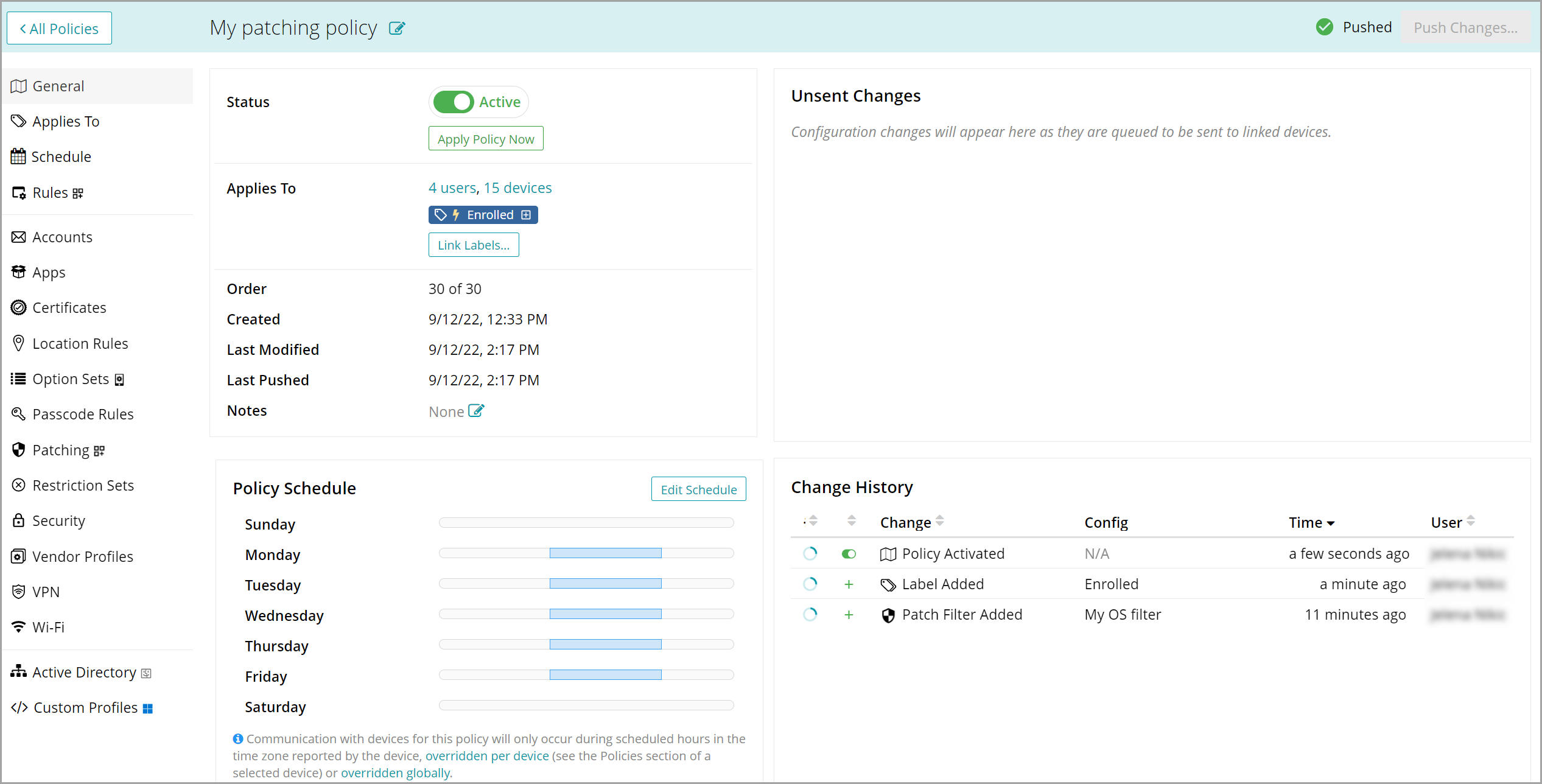
For more information about policies, see Using policies to manage device configurations.
To create or edit a patching policy:
- Go to Policies in top navigation.
- Complete one of the following steps:
- Click Add New.
- Click an individual policy to open it, then click the Edit icon.
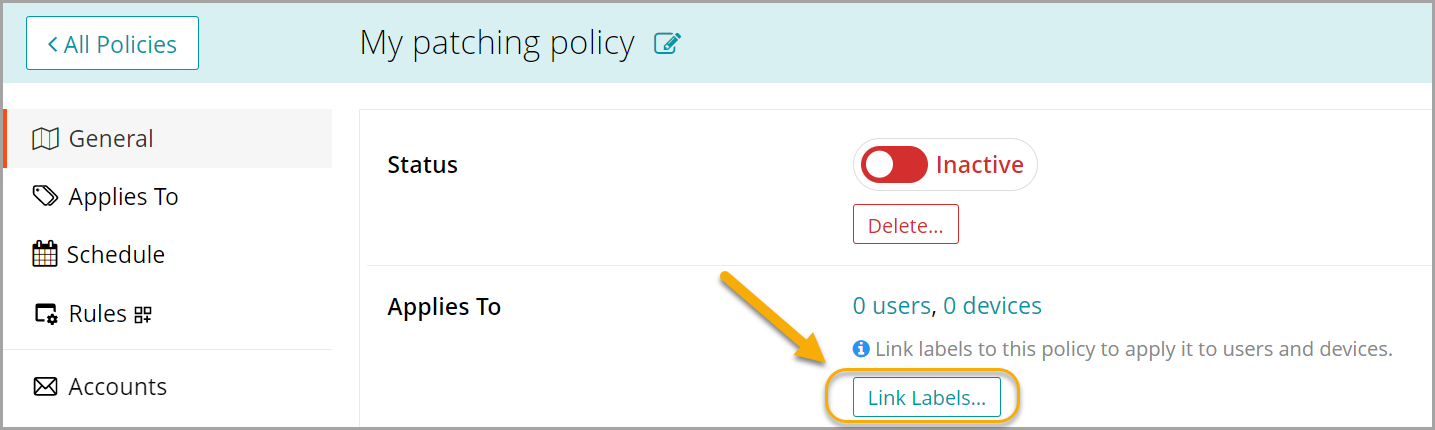
- In the General section, in the Applies To area, click Link Labels, and select one or more labels that point to target devices.
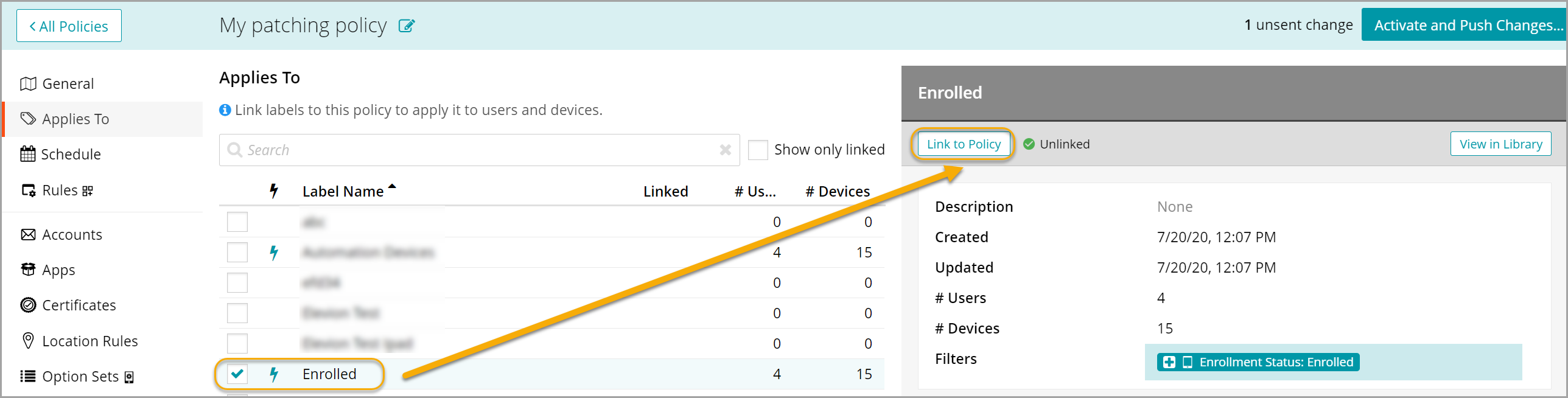
- In the list of labels that appears, select one or more labels, as applicable, and in the label view on the right, click Link to Policy.
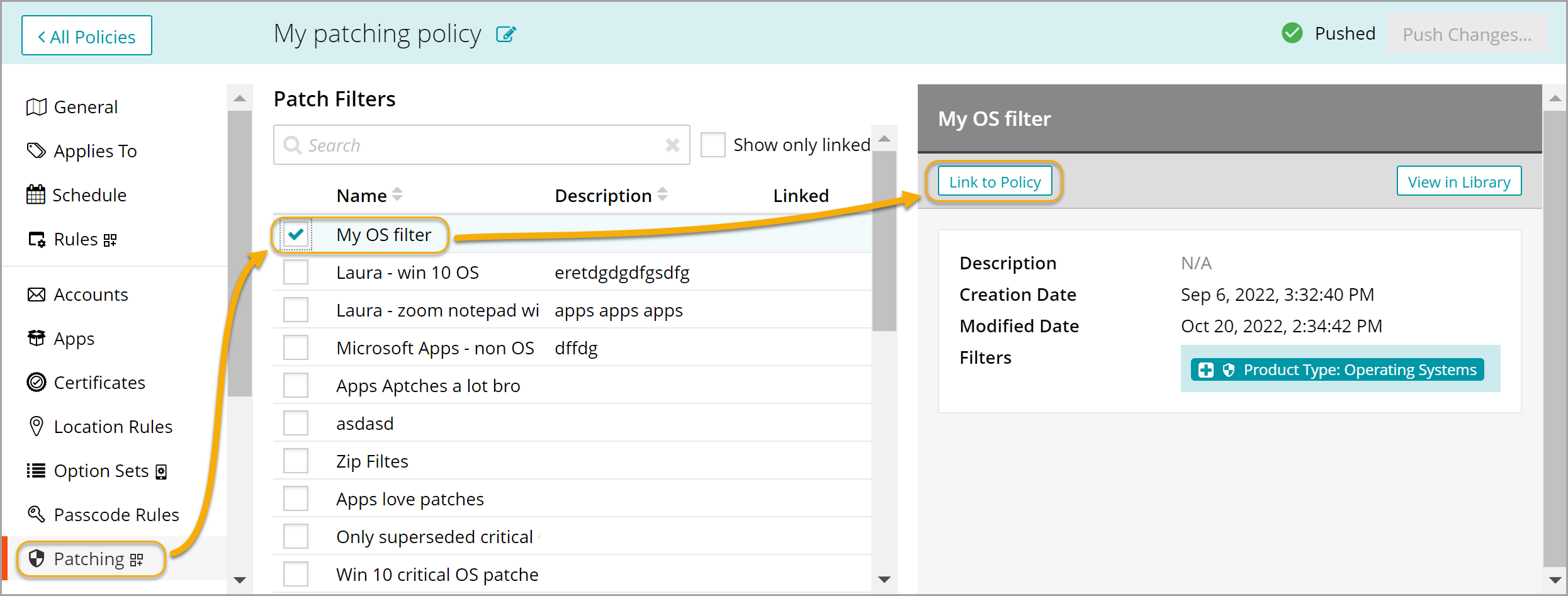
- In the left pane, click Patching, select one or more patching filters, as applicable, and in the patch filter view on the right, click Link to Policy.
- In the Schedule section, specify the patching schedule, as applicable. For details, see Schedule policies.
- In the Rules section, specify the KACE Cloud Agent notification rules, as applicable. For details, see Configure patching rules and client notification options.
- To activate the patching policy, in the top-right corner, click Activate and Push Changes, then click Confirm.